


world-of-satellite.co.uk
Forum Sponsor
This guide is based using OpenViX images.
1) Power off your receiver.
2) Connect your Sundtek tuner to USB port of your receiver and power on.
3) First we need to install Sundtek Control Center via the OpenViX online plugin feeds. Menu > Plugins > Press Green to download plugins > Select Extensions and press OK, then select sundtekcontrolcenter and press ok. Suntek Control Center will now be installed.
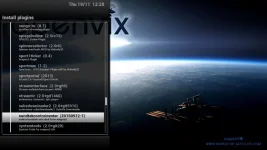
4) Now exit out of all screens and go to Menu > Plugins > Select Sundtek Control Center and press OK.
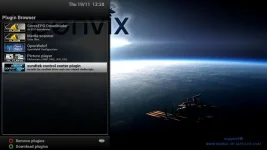
5) Select Configuration Support, using left/right keys on your remote set to YES.
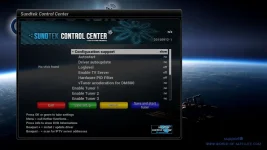
6) Select Autostart, using left/right keys on your remote set to YES.
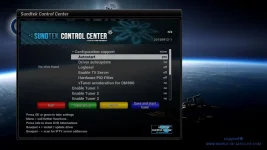
7) Press MENU on your remote, on the following screen select 'Install or update sundtek driver', once you see the complete message, press OK.
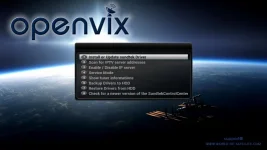
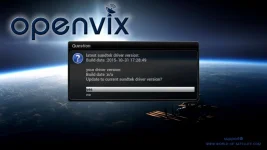
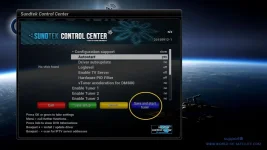
8) The drivers are now installed for your Sundtek tuner. Finally press BLUE button on your remote to save your setup and start the tuner. Be patient and wait for Enigma 2 to restart.
9) Once Enigma 2 has restarted go to Menu > Setup > Service Searching > Tuner Configuration > Your should now see the Sundtek Tuner listed.
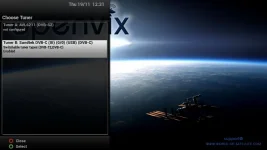
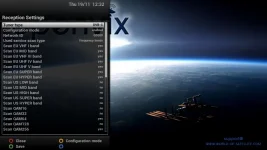
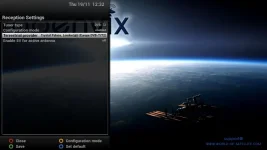
10) Select Sundtek tuner and press OK. Now to can set your DVB type is using a DVB-C/T2 tuner and other tuner settings as required. Examples below:
11) Finally exit out of all screens and reboot your receivers. Menu > Standby/Restart > Select Restart.
12) Once rebooted provided your have followed all the above guide the tuner should still be listed in Menu > Setup > Service Searching > Tuner Configuration.
That's it, very easy setup. Once you've done you can go ahead and scan, or simple use AutobouquetsMaker.
1) Power off your receiver.
2) Connect your Sundtek tuner to USB port of your receiver and power on.
3) First we need to install Sundtek Control Center via the OpenViX online plugin feeds. Menu > Plugins > Press Green to download plugins > Select Extensions and press OK, then select sundtekcontrolcenter and press ok. Suntek Control Center will now be installed.
4) Now exit out of all screens and go to Menu > Plugins > Select Sundtek Control Center and press OK.
5) Select Configuration Support, using left/right keys on your remote set to YES.
6) Select Autostart, using left/right keys on your remote set to YES.
7) Press MENU on your remote, on the following screen select 'Install or update sundtek driver', once you see the complete message, press OK.
8) The drivers are now installed for your Sundtek tuner. Finally press BLUE button on your remote to save your setup and start the tuner. Be patient and wait for Enigma 2 to restart.
9) Once Enigma 2 has restarted go to Menu > Setup > Service Searching > Tuner Configuration > Your should now see the Sundtek Tuner listed.
10) Select Sundtek tuner and press OK. Now to can set your DVB type is using a DVB-C/T2 tuner and other tuner settings as required. Examples below:
11) Finally exit out of all screens and reboot your receivers. Menu > Standby/Restart > Select Restart.
12) Once rebooted provided your have followed all the above guide the tuner should still be listed in Menu > Setup > Service Searching > Tuner Configuration.
That's it, very easy setup. Once you've done you can go ahead and scan, or simple use AutobouquetsMaker.


