Guide how to move image to Micro SD card and
boot from Micro SD card for larger Flash Size.
This is particularly useful in the Zgemma H9 series (H9S, H9T, H9.2S & H9.2H) due to the 256MB flash, moving image from NAND flash to Micro SD card will allow the installation of both Kodi and QT Stalker and many other plugins and give you a much larger flash size.
8GB Class 10 Micro SD card recommended.
This guide is written for OpenViX, SD card booting was implemented in OpenViX release build 5.2.029, all credits go to Twol from OpenViX Team adding this feature.
For the purpose of this guide we have used a 8GB Class 10 Micro SD Card and Zgemma H9 series receiver newly flashed with OpenViX 5.2.029, basic setup with no extra plugins.
Finally a few small notes. We’d recommend that once you’ve booted to SD card to only use the SD boot image. Online updates work as they should, but can get out of sync if trying to keep both nand image and SD card image updated, certain files are shared from NAND to SD, therefore we’d recommend only to use SD card image boot once booted to SD card. Note that it is currently not possible to Couch flash or USB flash an image direct to Micro SD Card. You can back up settings and plugins that can be restored to a SD boot image if ever needed to restore a backup.
boot from Micro SD card for larger Flash Size.
This is particularly useful in the Zgemma H9 series (H9S, H9T, H9.2S & H9.2H) due to the 256MB flash, moving image from NAND flash to Micro SD card will allow the installation of both Kodi and QT Stalker and many other plugins and give you a much larger flash size.
8GB Class 10 Micro SD card recommended.
This guide is written for OpenViX, SD card booting was implemented in OpenViX release build 5.2.029, all credits go to Twol from OpenViX Team adding this feature.
For the purpose of this guide we have used a 8GB Class 10 Micro SD Card and Zgemma H9 series receiver newly flashed with OpenViX 5.2.029, basic setup with no extra plugins.
[*=left]Power off the device and insert your Micro SD card.
[*=left]Power on the device.
[*=left]Once booted initialise the Micro SD card. Menu > Setup > Storage > Initialize Devices > Select your Micro SD card > Press OK > Press Green to initialise.
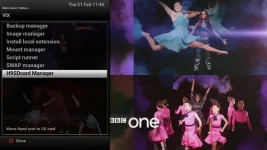
[*=left]Once complete exit all screens and reboot your receiver. Once re-booted, press Blue button > ViX > you’ll now see H9SDcard Manager.
[*=left]Once re-booted, press Blue button > ViX > you’ll now see H9SDcard Manager.
View attachment 58395
[*=left]Select H9SDcard Manager and press OK.
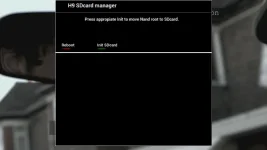
[*=left]You will now see the screen below, press Green button to prepare your SD card, this will copy the root image files to your SD card. Be patient will take a few minutes. Once complete the terminal information output window will close and go back to the screen below. Now Press Red button to reboot. IT IS IMPORTANT TO DO THIS REBOOT SO THAT THE NEWLY PREPARED MICRO SD CARD IS RECOGNISED FOR BOOTING PURPOSES.
View attachment 58396
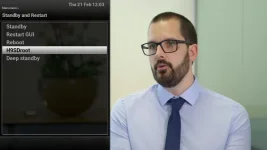
[*=left]Once rebooted go to Menu > Standby and Restart > H9SDroot.
View attachment 58397
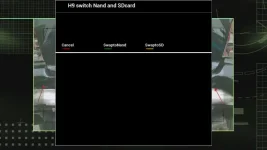
[*=left]Select H9SDroot and press OK, you’ll now see the screen below.
View attachment 58398
[*=left]Press Yellow button to Swap boot to Micro SD card, your receiver will now reboot and boot into Micro SD card image. If you need to boot back to NAND flash from SD card, as above but press Green to Swap boot to NAND flash.
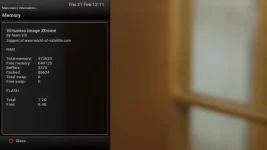
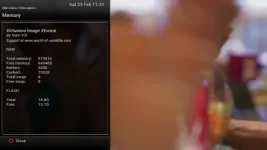
[*=left]Once booted go to Menu > Information > Memory, you will now see the large size flash and free flash size. We have installed both KODI and QT Stalker plugins and have 6.4GB free with a 8GB Class 10 Micro SD card. You’ll now be able to enjoy more free flash.
View attachment 58399
Finally a few small notes. We’d recommend that once you’ve booted to SD card to only use the SD boot image. Online updates work as they should, but can get out of sync if trying to keep both nand image and SD card image updated, certain files are shared from NAND to SD, therefore we’d recommend only to use SD card image boot once booted to SD card. Note that it is currently not possible to Couch flash or USB flash an image direct to Micro SD Card. You can back up settings and plugins that can be restored to a SD boot image if ever needed to restore a backup.