Superb quality and spec AB-Com PULSe 4K SE. Crazy offer! Only £99! FREE UK DELIVERY! 4K UHD, Enigma 2, Multiboot 4 images & more!...
Superb quality and spec AB-Com PULSe 4K Rev II Twin Satellite tuner only £149! FREE UK DELIVERY! 4K UHD, Enigma 2, SATA HDD facility, Multiboot 4 images & more!...

Problem updating OTA - no connection error

AndyB987

New member
Joined
Jan 5, 2025
Messages
2
Reaction score
0
Points
0
Hello,

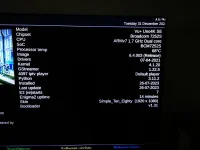
I'm trying to update the firmware using the OTA "software update" option from the menu. Currently using 6.4.003.

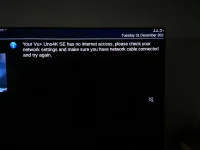
I get the error "Your Vu+ Uno4K SE has no internet access, please check settings and make sure you have network cable connected and try again."

1) The Uno4K has an IP address assigned - checked on router.

2) I can access the Uno4K over home LAN using WebIF OK.

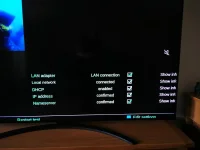
3) The Uno4K passes the network connectivity tests (LAN adaptor, local network, DHCP, IP Address, Nameserver).

No issues with any other device on home network accessing Internet.


What am I doing wrong?

Thanks

Andy


IMG_20241231_115744.webp

IMG_20241231_115506.webp

IMG_20241231_114255.webp
 
IIRC the software update check will try to connect to the Google DNS (8.8.8.8) to verify online connectivity. Is there any chance you have it blocked or you are using some firewall/VPN software which might block access?
 
Hello,

I'm trying to update the firmware using the OTA "software update" option from the menu. Currently using 6.4.003.

Possibly trying to "software update" from an image that is too old?

Try

First backup your settings
menu/setup/vix/backup manager/ press green to backup


Download and flash latest image
menu -> setup -> vix -> image manager -> press yellow to download and select the latest version of Openvix (6.6.13) . After it downloads highlight the version and press blue to flash

After the flash you will get a wizard enabling you to restore your settings.


There are 3 ways to upgrade your image


Method 1
menu/setup/system/software upgrade (this should not/cannot be used for major upgrades so alternatively use methods 2 and 3)

Method 2
menu/setup/system/vix/image manager : press yellow to download the upgrade image : press blue to flash the image. After the box automatically reboots you will be offered a wizard to restore settings and plugins (from a previous settings backup). The settings backup will usually be configured for a HDD or USB stick on the box (a user configuration)

Method 3
USB upgrade from a download to your PC.

The flashing guide using this method can be found at
https://www.openvix.co.uk/index.php...r-usb-flashing-guides/vu-usb-flashing-guides/

Download the image to your PC, unzip it and transfer it to a USB stick, power off your box, insert the usb stick, turn on the box and the new image should install.
 
Last edited by a moderator:
Method 1
menu/setup/system/software upgrade (this should/cannot be used for major upgrades so alternatively use methods 2 and 3)

Correction
Method 1
menu/setup/system/software upgrade (this should not/cannot be used for major upgrades so alternatively use methods 2 or 3}
 
Last edited:
I didn't twig the fact that the OP was several major versions behind:o However, the error message shouldn't have indicated that an internet connection wasn't available.
 

OpenViX Feeds Status

Back
Top