punisher
Forum Supporter ,
- Joined
- Oct 26, 2010
- Messages
- 4,641
- Reaction score
- 47
- Points
- 48
- Location
- Bel Air
- Website
- www.world-of-satellite.com
This tutorial will show you how to use the new Backup Manager and Image Manager on the ViX Image
Now although they seem the same, they aren't
The Backup Manager lets you create scheduled backups of your system files (not full
Image like Image Manager).
The Image Manager enables you to backup and restore your image (we are talking the whole image, not just settings).
Both also let you chose where you want to store the backups i.e USB, HDD, Network and also you can schedule Daily, Weekly or Monthly backups too.
Backup Manager
The (automated) settingsbackup is now in ViX-BackupManager, including the re-install of softcams and other plugins. After flashing an image, the restorefunction discovers the existence of settings, and asks if you want to restore them. The restore asks if previously installed plugins must be installed.
The restore function only discovers the existence of the latest backup, and it must have the default pref-fix. If you want an older backup to be restored, just say "No" to the wizard, return to the backupmanager once the system is up, select the wanted backup and choose "restore".
To get started you need to go to the Backup Manager which can be found by pressing the blue button/VIX/

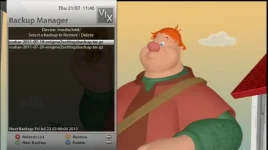
Once in the Backup Manager you will see something like below (mine has previous backups, your might be empty)
First you need to set up the Backup Manager (scheduled backups, directory etc). Press the Menu button on your remote to setup
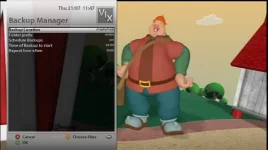
I have set mine to do a daily backup at 2am and store it on my HDD.
You can also press "Yellow" and add other files you would like to backup other than the default ones that are pre selected for you (i havent done any extra)

Press "Green" to save if you have made any changes. Once you are back on the main Backup Manager screen you are ready to make a backup.
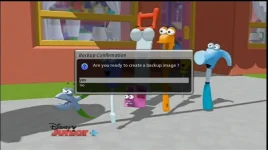
Press "Green" to make a New Backup and you will prompted with a confirmation box

Press "Yes" and the backup process will start like and you will be returned back to the main backup manager screen below

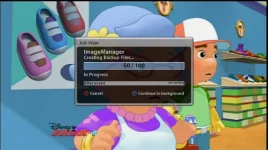
The backup process will run in the background but if you want to view it just press "Green" to View Progress

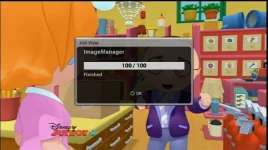
This will take a few minutes to process and once done you will see the Finished screen
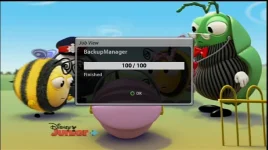
Just press OK to return to the main backup manager screen.

You might notice that there is nothing in there, if that is the case press "Red" to Refresh List and you should now see your backup

Now you can restore these settings right from the Backup Manager screen at any time by pressing "Yellow" to Restore. Or you can restore these settings after doing a new flash of the ViX Image right from the restore wizard.
NOTE:
The restore wizard only finds (and hence restores) the latest backed up settings. If you want to restore older setting, just say "No" to the restore wizard, you end up with a "clean" system. You can then enter the Backup Manager, select the desired settings and restore them in the live-system.
the latest backed up settings that the wizard would restore in my case from the screenshot above would be
vuduo-enigma2settingsbackup.tar.gz
And thats that
The Image Manager tutorial is below
Now although they seem the same, they aren't
The Backup Manager lets you create scheduled backups of your system files (not full
Image like Image Manager).
The Image Manager enables you to backup and restore your image (we are talking the whole image, not just settings).
Both also let you chose where you want to store the backups i.e USB, HDD, Network and also you can schedule Daily, Weekly or Monthly backups too.
Backup Manager
The (automated) settingsbackup is now in ViX-BackupManager, including the re-install of softcams and other plugins. After flashing an image, the restorefunction discovers the existence of settings, and asks if you want to restore them. The restore asks if previously installed plugins must be installed.
The restore function only discovers the existence of the latest backup, and it must have the default pref-fix. If you want an older backup to be restored, just say "No" to the wizard, return to the backupmanager once the system is up, select the wanted backup and choose "restore".
To get started you need to go to the Backup Manager which can be found by pressing the blue button/VIX/
Once in the Backup Manager you will see something like below (mine has previous backups, your might be empty)
First you need to set up the Backup Manager (scheduled backups, directory etc). Press the Menu button on your remote to setup
I have set mine to do a daily backup at 2am and store it on my HDD.
You can also press "Yellow" and add other files you would like to backup other than the default ones that are pre selected for you (i havent done any extra)
Press "Green" to save if you have made any changes. Once you are back on the main Backup Manager screen you are ready to make a backup.
Press "Green" to make a New Backup and you will prompted with a confirmation box
Press "Yes" and the backup process will start like and you will be returned back to the main backup manager screen below
The backup process will run in the background but if you want to view it just press "Green" to View Progress
This will take a few minutes to process and once done you will see the Finished screen
Just press OK to return to the main backup manager screen.
You might notice that there is nothing in there, if that is the case press "Red" to Refresh List and you should now see your backup
Now you can restore these settings right from the Backup Manager screen at any time by pressing "Yellow" to Restore. Or you can restore these settings after doing a new flash of the ViX Image right from the restore wizard.
NOTE:
The restore wizard only finds (and hence restores) the latest backed up settings. If you want to restore older setting, just say "No" to the restore wizard, you end up with a "clean" system. You can then enter the Backup Manager, select the desired settings and restore them in the live-system.
the latest backed up settings that the wizard would restore in my case from the screenshot above would be
vuduo-enigma2settingsbackup.tar.gz
And thats that
The Image Manager tutorial is below
Last edited: