Superb quality and spec AB-Com PULSe 4K SE. Crazy offer! Only £129! FREE UK DELIVERY! 4K UHD, Enigma 2, Multiboot 4 images & more!...
Superb quality and spec AB-Com PULSe 4K Rev II Twin Satellite tuner only £179! FREE UK DELIVERY! 4K UHD, Enigma 2, SATA HDD facility, Multiboot 4 images & more!...

[GiGaBlue UHD UE 4K] Adjust screen size?

maybe RTFM or use google. If we have to explain everything here to the letter this answer has not enough caracters to set here. Have 4 samsung tv's here up to date and all have the option.
Maybe the problem is there only on Gigablue but then it would probably be a driver problem for HDMI

On my VU+ duo4K SE in " settings - user interface - on screen display " I still can adjust the settings for the screen (with -height)
I cannot find a full manual for my box unless I pay for it, which I wont. Anyways, didn't you read what I posted this morning, as it sounds like you didn't.
I thought this forum was for people to get help with ViX and satellite boxes, but it it's getting like it isn't now. Incidentally do you tell everyone to RTFM.
 
I can't change the tv Picture size setting because as I said it is greyed out. I take it that is what you mean, and how do I rename HDMI to PC, because I don't have or see that option in the settings of the tv
On my samsung 55 inch (different model): Picture size setting

My settings
Picture size setting = 16:9 standard
Fits to screen = on
All other settings blanked out

also in the menu
Picture size setting = custom
Fits to screen = on or off
zoom/position = active but you may need to go into the menu option to "reset" which sets zoom= 0,0 and position = 0,0.
All other settings blanked out

If the 'picture size' setting is set to 4:3 the 'fit to screen' is blanked out. Some settings on my TV are not available at all (blanked out) but some others are dependant on some of the others settings for them to be active
 
Ok thanks, but on my samsung 50 inch tv, I have Picture Mode = Standard, Picture size setting = 16:9 and is greyed out.
The other 2 settings don't do anything regarding picture size.
 
all manuals from samsung are FREE downloadable in your own language.Can not set a link because is dutch here :)
 
all manuals from samsung are FREE downloadable in your own language.Can not set a link because is dutch here :)
Now you tell me which manual you are talking about, as I thought you meant the Gigablue box manual which I was referring to.
And after I downloaded it for my TV, there is nothing in it on how to adjust picture size when the setting is greyed out.
 
Ok thanks, but on my samsung 50 inch tv, I have Picture Mode = Standard, Picture size setting = 16:9 and is greyed out.
The other 2 settings don't do anything regarding picture size.

As someone else has mentioned Samsung TVs often have individual settings for each input (each HDMI input)

Is the enigma 2 box you are having this problem with actually displaying the picture on your TV when you go to the TV settings to change the picture size.
 
I tried changing the HDMI input from HDMI-cec to HDMI on the tv, but that didn't make any difference as I still could not change the picture size in the tv settings.

It is the enigma 2 box that I am the problem with as the top and bottom menus in both guide and display are half off the screen.

I did think of using or restoring an older backup, but as I flashed the box with the latest image, I have no idea if it would make any difference
 
I looked at the manual for your TV.
What does
Settings / All Settings / Picture / Expert Settings / Picture Size - give you as options?
Could you take a photo of this screen setting and attach to a reply, please?

The menus on enigma should fit in a 1920x1080 frame (assuming a HD setting and normal skin) and the only time the edges or corners of menus appear outside a TV display is if it is set to overscan.
 
I looked at the manual for your TV.
What does
Settings / All Settings / Picture / Expert Settings / Picture Size - give you as options?
Could you take a photo of this screen setting and attach to a reply, please?

The menus on enigma should fit in a 1920x1080 frame (assuming a HD setting and normal skin) and the only time the edges or corners of menus appear outside a TV display is if it is set to overscan.
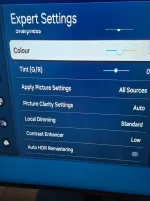
I don't see Picture Size in the Expert Settings, as per the picture
 

Attachments

  • 20261105_150713.webp
    20261105_150713.webp
    137.5 KB · Views: 8
I don't see Picture Size in the Expert Settings, as per the picture
The Picture Size setting is much further down in the menu, according to the user guide (e-book). All TVs have a Picture Size option somewhere in the settings. For example, some people don't like to see pillarbox black bars at the side on 4:3 sources, so they use the picture size option to remove them - so called "stretchyvision"! Not my preference, but the option is usually there. What you're looking for is "Screen Fit" or "Fit to Screen". My Sony TV uses "Full Pixel", LG TVs use "Full Scan" or similar.

You may have to rename or set the particular HDMI port that your receiver is plugged into - to PC mode or similar to expose the full expert settings options. I think the e-book manual on Samsung's website is applicable to several models and not absolutely specific to your TV.
 
The Picture Size setting is much further down in the menu, according to the user guide (e-book). All TVs have a Picture Size option somewhere in the settings. For example, some people don't like to see pillarbox black bars at the side on 4:3 sources, so they use the picture size option to remove them - so called "stretchyvision"! Not my preference, but the option is usually there. What you're looking for is "Screen Fit" or "Fit to Screen". My Sony TV uses "Full Pixel", LG TVs use "Full Scan" or similar.

You may have to rename or set the particular HDMI port that your receiver is plugged into - to PC mode or similar to expose the full expert settings options. I think the e-book manual on Samsung's website is applicable to several models and not absolutely specific to your TV.
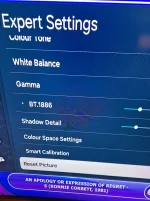
This is what have with nothing about picture size, and I have already reset the picture , but no difference on my enigma 2 box
 

Attachments

  • 20261105_172404.webp
    20261105_172404.webp
    234.4 KB · Views: 5
I'm out of ideas. There has to be a screen size setting in the TV menus but you are not finding it. Someone with a similar Samsung model may chip in with suggestions. Alternatively, try google AI for suggestions for your particular model.
 
And he is using openatv image they should flash vix first, surprised so many replies.
See post 5
 
I'm out of ideas. There has to be a screen size setting in the TV menus but you are not finding it. Someone with a similar Samsung model may chip in with suggestions. Alternatively, try google AI for suggestions for your particular model.
Thanks and according to one site it says :
The most common options are 16:9 Standard (widescreen, best for most content),
which my TV is set at, even tho' it's greyed out, but I will try other options which I tried before
 
what about post 5 " I do this on most images, I only have openatv installed at the moment but its menu, set up, video, osd calibration. Make the screen smaller until the red lines are visible and move the edge of the screen up and down."
 
I have tried swapping the hdmi cable from hdmi cec to hdmi 1 and also hdmi 2 on my tv. All that did was to disable or greyout all the picture settings.
I have my tv for just over 2 years and never had any problems with earlier openvix images nor the screen size on the gigablue box. It was only since I flashed the box with the current latest version, the the problems occurred.

Update:
I solved the screen size problem in OpenViX by going to settings/Audio &Video settings and changed the resolution from 1080 to 2160. As simple as that . Problem now solved

I still have the front panel display problem though.

Thanks any way to all for suggestions, but in the end it was an openvix setting which sorted it
 
Last edited:
what about post 5 " I do this on most images, I only have openatv installed at the moment but its menu, set up, video, osd calibration. Make the screen smaller until the red lines are visible and move the edge of the screen up and down."
What red lines are you talking about as I haven't seen any either on my tv nor in openvix settings
 
oops I looked again and I'm colour blind I was going by the avatar so my mistake. So sorry and glad you are sorted. I shall be more careful in future.
 

OpenViX Feeds Status

Back
Top