

punisher
Forum Supporter ,
- Joined
- Oct 26, 2010
- Messages
- 4,641
- Reaction score
- 47
- Points
- 48
- Location
- Bel Air
- Website
- www.world-of-satellite.com
In this tutorial I will show you how to use a DynDNS account to setup Inadyn so you can use your own dns host for the receiver. This is a new feature in ViX 2.2.1
For this you will need a dyndns account, something a long the lines of xxxxxxx.dyndns.org (for the purpose of this example). If you don't have one then you can register a free one for your IP Address at
Once you have your dyndns account setup, you need to enter into the Inadyn Setup which can be found by pressing Menu/Setup/System/Network
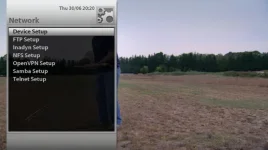
Go into Inadyn Setup and you will see the default screen with the setup below
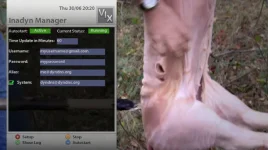
You will need the details here that you registered when you setup your dyndns account
Your DynDNS Account Username
Your DynDNS Account Password
Your DynDNS Host Name
If you Press the Red Button "Setup" you will see the below screen where you will need to add your own account details as mentioned above
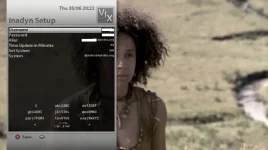
Once you have entered them Press Red "Save" and you will be shown your settings as below

Now this is important, You NEED to press Yellow "Stop" and then Yellow "Start" In order to start up Inadyn properly.
If you have set everything up correctly, press Green "Show Log" and you should see a screen similar to below with your Internet IP address as successful

And that is it, you have no successful setup your DynDNS account. I use this so I can access the box when I am not at home for FTP use or Streaming use or accessing the Web Interface. Aslong you have the relevant Ports Forwarded in your router then you can access your receiver anywhere
Hope you find this useful
For this you will need a dyndns account, something a long the lines of xxxxxxx.dyndns.org (for the purpose of this example). If you don't have one then you can register a free one for your IP Address at
Code:
https://www.dyndns.com/account/services/hosts/add.htmlOnce you have your dyndns account setup, you need to enter into the Inadyn Setup which can be found by pressing Menu/Setup/System/Network
Go into Inadyn Setup and you will see the default screen with the setup below
You will need the details here that you registered when you setup your dyndns account
Your DynDNS Account Username
Your DynDNS Account Password
Your DynDNS Host Name
If you Press the Red Button "Setup" you will see the below screen where you will need to add your own account details as mentioned above
Once you have entered them Press Red "Save" and you will be shown your settings as below
Now this is important, You NEED to press Yellow "Stop" and then Yellow "Start" In order to start up Inadyn properly.
If you have set everything up correctly, press Green "Show Log" and you should see a screen similar to below with your Internet IP address as successful
And that is it, you have no successful setup your DynDNS account. I use this so I can access the box when I am not at home for FTP use or Streaming use or accessing the Web Interface. Aslong you have the relevant Ports Forwarded in your router then you can access your receiver anywhere
Hope you find this useful
Last edited:


