Superb quality and spec AB-Com PULSe 4K SE. Crazy offer! Only £129! FREE UK DELIVERY! 4K UHD, Enigma 2, Multiboot 4 images & more!...
Superb quality and spec AB-Com PULSe 4K Rev II Twin Satellite tuner only £179! FREE UK DELIVERY! 4K UHD, Enigma 2, SATA HDD facility, Multiboot 4 images & more!...

[VU+ Duo2] Network mounts not appearing after setup

  • Thread starter Thread starter perkins
  • Start date Start date
Thanks Andy can I call you tomorrow pm 6 ish as I have guest at th moment thanks for your support Richard
 
Hi,
Am having a similar issue. Have a external hard drive connected through USB to my Asus RT-N66U Dark Knight router (as a NAS).
In the network browser on Enigma2 (ET9x00, Vix Build 753) , I am able to see the hard drive and am mounting it and getting a mount successful message. But when I go to the the file list, I see nothing under "net" folder.

Any thoughts ?? :confused:
 
Hi where you able to figure out your issue with your Asus RT-N66U and the external hard drive through USB? I actually bought this router today for the sole reason of plugging in my external hard drive and I can't get it working :(
 
You have to share specific folders on the drive and they would be visible on the network

Sent from my HTC One using Tapatalk
 
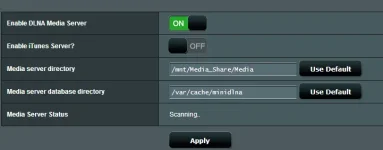
OK so I have enabled the Media Server as shown MEdia.webp

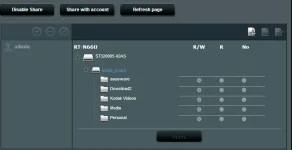
Then I have setup a share as well for the folders I am interested in as shown samba.webp

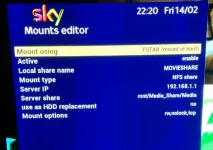
Then I have setup a mount for the drive as shown VU.webp

But I still can't see the share :(

Can you explain what steps you took or what I am doing wrong?

Thanks
 
i'm away from my home so can't check...if i recall correctly..i used CIFS (or was it FSTAB) and entered the login details for the Asus router..i.e. admin and the password you set up..and then it works...as i said earlier you need to do this for each folder you want to mount...so if you have a video, music, photos folder on the drive conneted to Asus..u can create 3 mounts one for each folder..and then it shows in your STB ....

Hope that helps..let me know if it doesn't and i'll try to check on my box tomorrow or day after...
 
Go to mounts management...add a new mountpoint of CIFS type ..then

Mount using FSTab at boot
Active enable
Local sharename <<whatever you want to call it....or the same folder name as on the drive connected to Asus>>
Mount Type CIFS share
Server IP <192.168.1.1 or whatever is the ip address of your Asus>>
Server share <<this should show the name of the folder that you are mounting on the drive connected to asus>>
Use as HDD Replacement <<No..unless you want to use the network drive for that>>
Mount options rw,ut8 <<you can set as required..this is the default>>
Username admin <<MOST IMPORTANT STEP ...enter the login details for the shared drive..tyipcally admin unless you have created other share accounts on Asus >>
password <<password for the above>>

Green button to Save

and now if you go to File list, locations you should be able to see the folder.
 
Well I have tried everything you suggested but I am still having no luck :(

Did you have TS Panel installed on your box before you started creating shares etc? I have been reading up and by the sounds of things some people are saying that having that plugin installed could be causing those issues, I already had TS Panel installed before I started installing shares etc.

I might just have to start from scratch again with this box, reimage etc and try it that way.
 

OpenViX Feeds Status

Back
Top