
Superb quality and spec AB-Com PULSe 4K SE. Crazy offer! Only £99! FREE UK DELIVERY! 4K UHD, Enigma 2, Multiboot 4 images & more!...
Superb quality and spec AB-Com PULSe 4K Rev II Twin Satellite tuner only £149! FREE UK DELIVERY! 4K UHD, Enigma 2, SATA HDD facility, Multiboot 4 images & more!...
You are using an out of date browser. It may not display this or other websites correctly.
You should upgrade or use an alternative browser.
You should upgrade or use an alternative browser.
Channels problem
- Thread starter Agricola
- Start date

satteliter
Forum Supporter

- Joined
- Feb 20, 2021
- Messages
- 108
- Reaction score
- 0
- Points
- 16
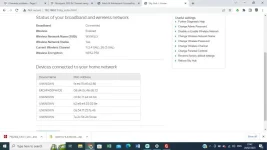
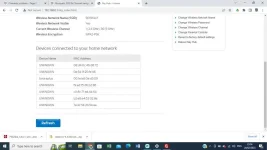
i was hoping to see some ip addresses listed. is there other information in there that have something that looks like 192.168.1.2 or 2001:db8:3333:4444:5555:6666:7777:8888.?
satteliter
Forum Supporter
- Joined
- Feb 20, 2021
- Messages
- 108
- Reaction score
- 0
- Points
- 16
ok, download this - https://nmap.org/dist/nmap-7.93-setup.exe and install it on your windows computer.
it is a tool that will scan your network looking for port 22. it is safe etc.. it's a way to figure out the ip address of your box.
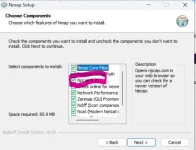
when you install it, click through . and when you see the 'choose components' screen - you have to tick the 'Npcap 1.71' to make sure that it is installed.
after it is installed, you open it in windows start menu etc.. and then come back here
it is a tool that will scan your network looking for port 22. it is safe etc.. it's a way to figure out the ip address of your box.
when you install it, click through . and when you see the 'choose components' screen - you have to tick the 'Npcap 1.71' to make sure that it is installed.
after it is installed, you open it in windows start menu etc.. and then come back here
satteliter
Forum Supporter
- Joined
- Feb 20, 2021
- Messages
- 108
- Reaction score
- 0
- Points
- 16
so the text you type will be different as i'm not with sky. so the image is for guidance but this is the text you use(i think - unless sky does things different)
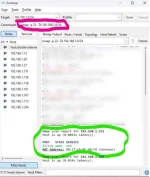
the area circled red is where you type the text, then press scan.
the area below it will output the results of the scan. you are looking for something in green (circled in green in image
green text stating "22/tcp open ssh"
this is the text you put in the red area:
nmap -p 22 -T4 192.168.0.0/24
the ip address above the green text will have 'nmap scan report for 192.168.0.x)
take a note of x
the area circled red is where you type the text, then press scan.
the area below it will output the results of the scan. you are looking for something in green (circled in green in image
green text stating "22/tcp open ssh"
this is the text you put in the red area:
nmap -p 22 -T4 192.168.0.0/24
the ip address above the green text will have 'nmap scan report for 192.168.0.x)
take a note of x
satteliter
Forum Supporter
- Joined
- Feb 20, 2021
- Messages
- 108
- Reaction score
- 0
- Points
- 16
great. so i dont use filezilla but in winscp, this is how i would connect to that ip(which is the network address of the box)
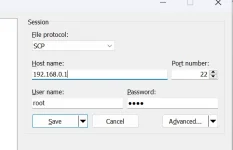
the other programs are gonna be much the same or you can just downoad winscp (also free)
the important things are the ip address (192.168.0.26), the port (22), the protocol (SCP) , the username (root), the password (root)
do that and click connect.
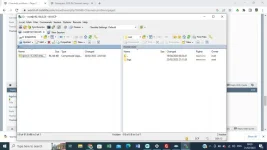
it will mention do you want to accept key etc. - just click yes and then you are connected to the box.
then come back here
the other programs are gonna be much the same or you can just downoad winscp (also free)
the important things are the ip address (192.168.0.26), the port (22), the protocol (SCP) , the username (root), the password (root)
do that and click connect.
it will mention do you want to accept key etc. - just click yes and then you are connected to the box.
then come back here
satteliter
Forum Supporter
- Joined
- Feb 20, 2021
- Messages
- 108
- Reaction score
- 0
- Points
- 16
ok, so the left pane is your local machine. the right pane is the tv box. the up arrow with 2 periods beside it is the up a level link. on the right pane, double click that, and you go to /home
double click it again and you go to /
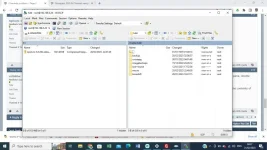
from there, you should see a folder called 'media', then inside that a folder called 'hdd', click into media, then hdd, then post a screenshot of the contents of 'hdd' here.
if you don't see those or get stuck , let us know
double click it again and you go to /
from there, you should see a folder called 'media', then inside that a folder called 'hdd', click into media, then hdd, then post a screenshot of the contents of 'hdd' here.
if you don't see those or get stuck , let us know
satteliter
Forum Supporter
- Joined
- Feb 20, 2021
- Messages
- 108
- Reaction score
- 0
- Points
- 16
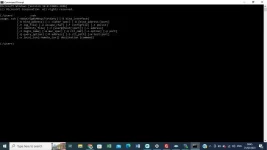
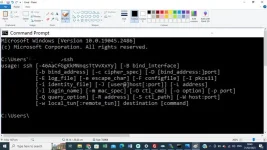
leave that open and just check the following.
open a command prompt in windows. should be in start menu somewhere and when it opens, just type ssh and press enter. then copy that screenshot back here:
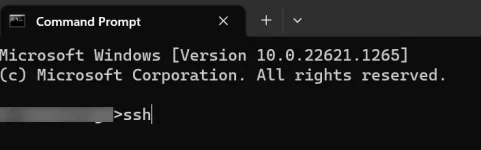
open a command prompt in windows. should be in start menu somewhere and when it opens, just type ssh and press enter. then copy that screenshot back here:
satteliter
Forum Supporter
- Joined
- Feb 20, 2021
- Messages
- 108
- Reaction score
- 0
- Points
- 16
brilliant. we're just gonna connect to the box using the command prompt.
so type
ssh [email protected]
it will prompt for password, password same as earlier - root
then type
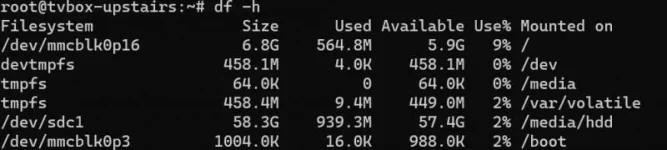
df -h
and press enter.
this will show you and us how much space you have on box etc..
this might get tricky as you have older version of tvbox so this command might not yet work but there will be alternatives we can try
edit:
on windows, you can hold Win key & Shift key & s key to screenshot a portion. an overlay appears and you use mouse/trackpad to select the area you want to share
https://support.microsoft.com/en-us...eenshots-00246869-1843-655f-f220-97299b865f6b
so type
ssh [email protected]
it will prompt for password, password same as earlier - root
then type
df -h
and press enter.
this will show you and us how much space you have on box etc..
this might get tricky as you have older version of tvbox so this command might not yet work but there will be alternatives we can try
edit:
on windows, you can hold Win key & Shift key & s key to screenshot a portion. an overlay appears and you use mouse/trackpad to select the area you want to share
https://support.microsoft.com/en-us...eenshots-00246869-1843-655f-f220-97299b865f6b
Last edited:
satteliter
Forum Supporter
- Joined
- Feb 20, 2021
- Messages
- 108
- Reaction score
- 0
- Points
- 16
to the OGs in thread, i don't whether opkg upgrade/update or some variation could be used here to speed up updating process so feel free to chime in if that makes sense/ is a plausible path

abu baniaz
Moderator
You can't update through image ranges.
Use OpenWebif to control the box and carry out the earlier image manager advice. You should be able to download now the box is connected to the network.
Put the IP address in your Web browser. There is a virtual remote. Selecting those buttons will also generate screenshots so you can can see the options /menu.
If you want to flash it by command line, there is a command in the thread in my signature
Use OpenWebif to control the box and carry out the earlier image manager advice. You should be able to download now the box is connected to the network.
Put the IP address in your Web browser. There is a virtual remote. Selecting those buttons will also generate screenshots so you can can see the options /menu.
If you want to flash it by command line, there is a command in the thread in my signature
satteliter
Forum Supporter
- Joined
- Feb 20, 2021
- Messages
- 108
- Reaction score
- 0
- Points
- 16
ok.
type
uname -r
and press enter, then paste output back here
type
uname -r
and press enter, then paste output back here
satteliter
Forum Supporter
- Joined
- Feb 20, 2021
- Messages
- 108
- Reaction score
- 0
- Points
- 16
ok lets follow abus advice on this.
just type the tv box ip into a web browser. that will bring up the web ui. on the left column - click 'capture screenshot', then click refresh automatically.
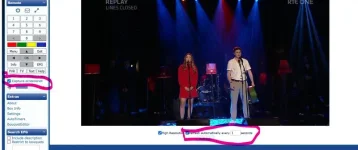
from there, you can see the box output screen and will be able to use abus earlier suggestion of updating through box which will be much easier (completely forgot the web ui existed!)
just type the tv box ip into a web browser. that will bring up the web ui. on the left column - click 'capture screenshot', then click refresh automatically.
from there, you can see the box output screen and will be able to use abus earlier suggestion of updating through box which will be much easier (completely forgot the web ui existed!)
Similar threads


- Replies
- 10
- Views
- 493
- Replies
- 24
- Views
- 1K

